


How to Add a Facebook Pixel to Your Shopify Store
Connecting Shopify to Meta, formerly Facebook, is vital if you want to monitor your orders, products, and customers in one place. One of the best ways to do this is with the Pixel. This guide explains how to add a Facebook Pixel to your Shopify store.
As Meta’s tracking tool, Pixel allows Shopify store owners to track the interactions and actions of people visiting their stores. These interactions, commonly referred to as events, play an important role in analytics and marketing campaign setup.
Don’t know how to add a Facebook Pixel to your Shopify online store? Worry no more. We will explain everything in detail. To get started, you can first find your Facebook Pixel.
What is a Facebook Pixel?
A Facebook Pixel is a piece of JavaScript code connected to a Facebook advertising account and installed on a website. This code can be added to the pages of your site to track visitors, collect data about their actions, and send that information to Meta Ads Manager.
Facebook Pixel features
This element has many valuable features. Here are just a few of them:
- It collects data about users and their behavior on a website or landing page. For example, if a visitor clicks an ad, goes to a landing page, adds a product to the cart, and completes a purchase, Pixel can track that journey. This data can then be used to analyze the target audience and improve targeting.
- It helps evaluate traffic conversion and the effectiveness of an advertising campaign. The relevance of your product to your target audience is usually based on hypotheses. Pixel helps you understand whether those hypotheses are accurate and whether your offer meets the expectations of people who clicked on your ad.
- It can help increase sales and support automatic bid management strategies. The platform can use received data to identify potential customers more effectively, going beyond manual assumptions about the target audience.
- It supports campaign optimization. Facebook’s machine learning algorithms can help target ads to users who are more likely to be interested in your product and more likely to make a purchase.
- It helps with conversion tracking. Thanks to Facebook Pixel, you can see when a visitor achieves a goal, such as downloading a price list, buying a product, or registering for an event. This data can also be used to run separate ads for different customer categories in the future.
Among other things, Pixel allows you to collect audiences for remarketing and set up similar or combined target audiences. Based on your audience data, the platform can help you find people with similar interests within the social network.
Adding a Facebook Pixel to Your Shopify Store
Here are the steps you should follow to add Facebook Pixel to your Shopify store.
1. Get your Facebook Pixel ID
The first thing you need to do is find your Facebook Pixel ID.
Go to Facebook Business Settings, which is under Ads Manager. Access the Data Source section, where you will find the Pixels option. Click on it, and you will be able to create a Pixel if you have not already done so, or view a Pixel you have already created.
To install the Pixel, you can use a specific integration, do it manually yourself, or ask a developer to carry out the task on your behalf. The simplest method is usually to use an integration or tag management tool.
2. Enter the Pixel ID on your Shopify store
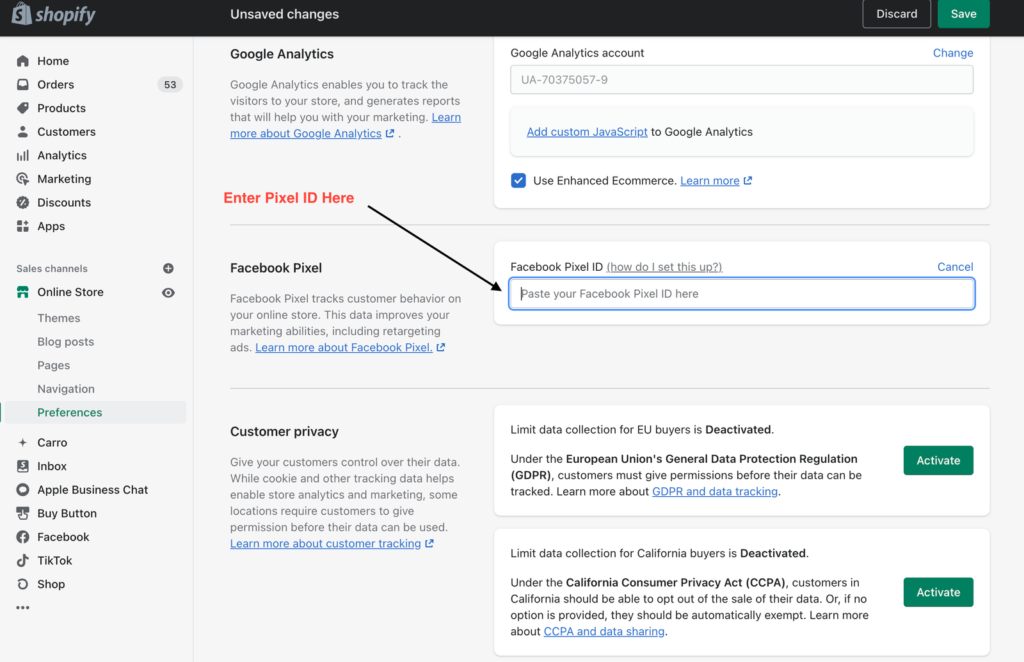
Once you are done with the previous step, log in to Shopify and go to the “Online Store” section. Then go to the Preferences area. Scroll down until you find the Facebook Pixel ID section. Enter your Pixel ID there.
3. Check the status of your Pixel on Facebook
Choose “Pixel” again from the menu and check whether your Facebook Pixel is working properly. If the Pixel status shows no activity, it may mean that the Pixel is not working. However, it can take around 20 minutes to see changes, so wait a little before troubleshooting further.
There can be several reasons why your Pixel is not working correctly, but one common cause is a problem with the code. In this case, delete it and enter it again. It may also happen that some rules on your site do not match the Pixel settings.
Shopify has useful guides on the correct use of Pixel. We recommend reviewing them carefully if you are not able to complete the setup.
If you still cannot solve the issue after consulting Shopify’s documentation, contact Shopify support and explain the problems you found. If possible, attach screenshots of the error.
In most cases, you should be able to find a solution and start using this useful performance indicator to better guide your Shopify strategy.
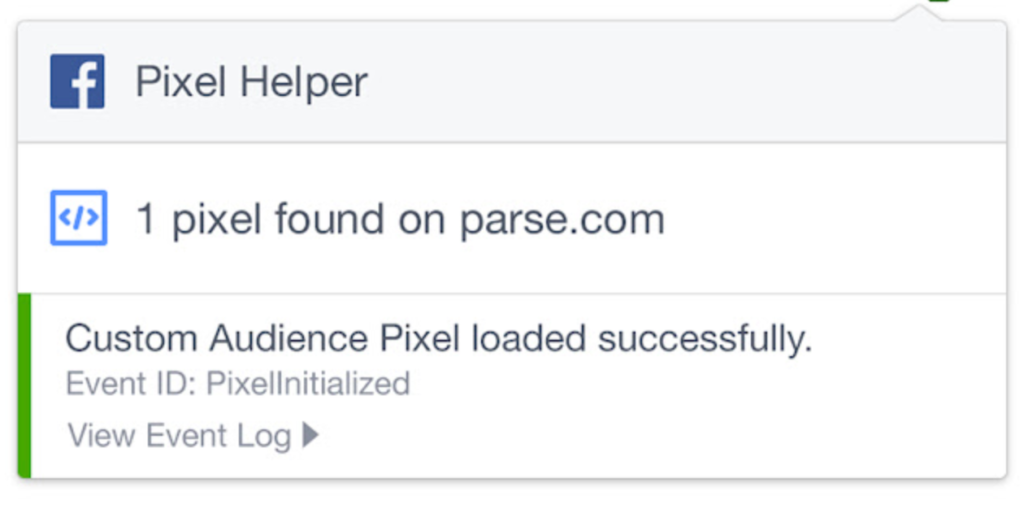
There is also a useful Chrome extension that can be used for checking your Pixel. The extension is called Facebook Pixel Helper, and you can find it here.
The Main Advantages of the Facebook Pixel for Your Shopify Store
1. Track website conversions
Pixel can help track conversions such as purchases, add-to-cart actions, leads, and newsletter subscriptions. For example, Facebook can know if you have a new lead who has filled out a contact form because the Pixel can detect the form submission confirmation page.
2. Retargeting advertising
Because Facebook can know who has visited your website and find them on its platform, you can show targeted advertising to people who have already visited your site. Many brands show prospects the exact product they viewed or added to their basket.
3. Convert visitors into prospects or buyers
Many visitors leave a website without returning. Thanks to Pixel, you have a chance to reach those same visitors again and encourage them to come back or complete a purchase.
4. Optimize ads to create conversions
Pixel data can help you optimize your ads for specific events, such as purchases, add-to-cart actions, and lead generation. Facebook can then look for people who are more likely to complete the event you choose to optimize for.
5. Find new customers
You can create lookalike audiences to reach people with a profile similar to your best customers.
6. Measure the results of your advertisements
With analytics tools, you can understand the performance of your advertisements by reviewing the results they generate. You can view information such as conversions and sales.
Changing or Removing Facebook Pixel from Your Shopify Store
1. Go to your admin page: Log in to your Shopify admin and select the Facebook option.
2. Open settings: Go to Settings.
3. Open Data Sharing Settings: Visit the Data Sharing Settings section.
4. Disconnect the Pixel: Select Disconnect to remove the current Pixel code.
Create a New Pixel or Connect Another One
If you have previously edited your theme file code to include a Facebook Pixel, make sure you remove the old Pixel code before adding a new Facebook Pixel ID through the Facebook option. Failure to remove the old code can result in your site having more than one Pixel code. This can lead to inaccurate reporting or duplicate data.
Removing Pixel Code from the Theme File
1. Go to Online Store: In your Shopify admin, go to Online Store.
2. Open Themes: Go to Themes and select Actions in the current theme section.
3. Open the code editor: Choose Edit Code.
4. Open theme.liquid: Click on the theme.liquid file.
5. Remove the Pixel code: In the <head> and </head> tags, find your Facebook Pixel code and delete it.
6. Save the changes: Click Save.
Removing Facebook Pixel Code via Online Store Preferences
1. Go to Online Store: In your Shopify admin section, go to Online Store.
2. Open Preferences: Go to Preferences.
3. Open the Facebook Pixel area: Click Change in the Facebook Pixel section.
4. Delete the Pixel: Select Delete Facebook Pixel.
5. Save the changes: Click Save.
These are the simple procedures to follow if you want to delete or remove a Facebook Pixel from your Shopify store. You do not need programming knowledge to carry them out.
A Final Note
Analyzing your target audience and understanding its needs is key to effective Facebook ad targeting. Only by knowing your users well will you be able to create accurate audience segments within the social network. Facebook Pixel makes it easier to gather valuable data.
Create Circus Ltd is a Shopify expert and eCommerce agency based in the UK, specializing in everything eCommerce, from custom theme development to app integrations and sales channels.
You may also need to add Google Analytics to your Shopify store. Google Analytics is another important way of tracking data, just like the Facebook Pixel.