


Using Google Analytics on your Shopify Store
Google Analytics is a service that tracks data from your website and turns that data into reports. These reports provide valuable information about problems and successes across your sales channels. This information can be used to quickly correct issues or lean into what is already working. Google Analytics data is essential for businesses that want to understand their customers’ behaviour.
Setting Up Google Analytics on Shopify
Step 1: Set up your Google account
If you have not started your Google Analytics account yet, go to Google Analytics and set up a free account for your business. If you already have a Gmail or Google Drive account, you can use that same account. Once you set up your Google account, make sure to click the “Get Tracking ID” button. You will need this to connect your account to Shopify.
Step 2: Set up your account on Shopify
Go to your Shopify admin account and select Online Store under Sales Channels. Then go to Preferences. Take the Tracking ID code you saved from Google Analytics and enter it into the Google Analytics box on this page. It can take up to 24 hours to start seeing your data on Shopify, so do not worry if you do not see it immediately.
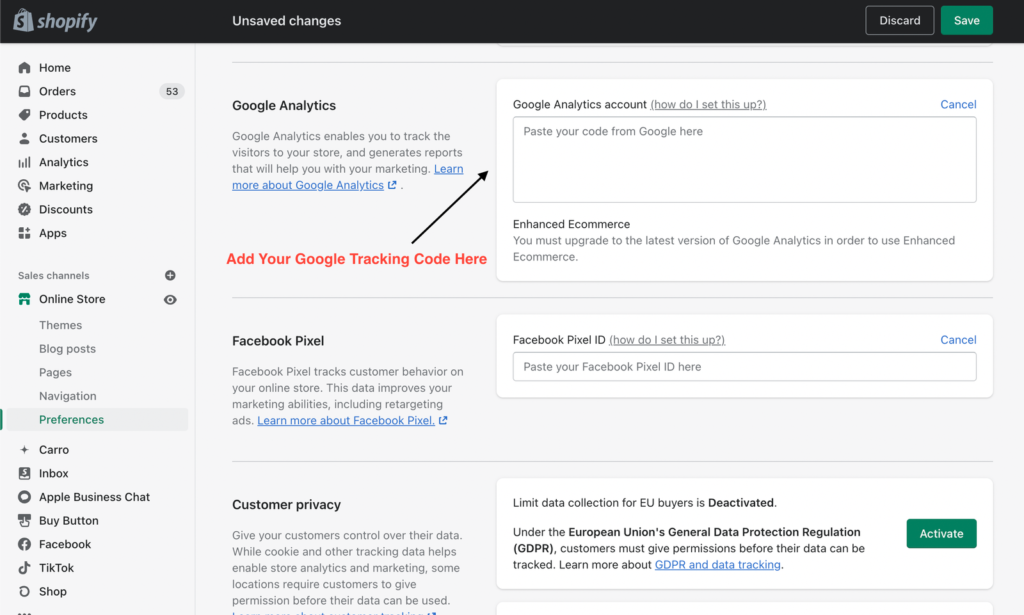
Step 3: Enable eCommerce tracking
Once you have set up your Google Analytics account on Shopify, it may be beneficial to turn on eCommerce tracking. From the Google Analytics homepage, enable eCommerce tracking to access enhanced information about revenue, transactions, and visitors.
How to Add Google Analytics 4 to Shopify
Google Analytics 4 is essential for making data-driven decisions. You can add this tool to Shopify to increase the efficiency and functionality of your eCommerce business. How you add Google Analytics 4 to Shopify will mainly depend on your version of Shopify. With the standard version of Shopify, you can install Google Analytics on all pages except checkout. If you use Shopify Plus, you can install Google Tag Manager tracking code on your store’s pages, including checkout pages.
Add Google Analytics 4 to Shopify
Follow these steps to add Google Analytics 4 to Shopify.
Step 1: Insert the tracking code into your theme
- Navigate to Themes from the Online Store option.
- Edit the theme.liquid file and paste the tracking code between the head tags.
Step 2: Add the tracking code to the order confirmation page
- Access the Checkout feature from Settings.
- Add your modified tracking code to the Additional Scripts section.
Step 3: Exclude Shopify as a referral
It is important to prevent Shopify checkout pages from appearing as referrals in your reports. You can exclude Shopify as a referral in Google Analytics 4 to make sure your sales are attributed to the correct marketing channel.
- Navigate to the data stream in Google Analytics and select More Tagging Options.
- Choose List Unwanted Referrals and enter myshopify.com as an exclusion.
Step 4: Add your Universal Analytics Property ID
- Access Preferences from the Online Store option.
- Enter your Universal Analytics Property ID under Google Analytics.
Shopify Analytics vs. Google Analytics
Shopify Analytics is an excellent resource for basic information, including high-level revenue data, conversion rates, sessions, and traffic data. Shopify Analytics has limited information for deep data work, but it is useful for smaller businesses that only need basic analytics. If your business requires large amounts of data or has a large advertising budget, Google Analytics may be the better choice.
Why Should You Use Google Analytics on Shopify?
Simply put, Google Analytics is one of the easiest ways to learn about your customers’ behaviour. If you want to improve sales or serve customers better, Google Analytics data can help you make smarter improvements to your shop.
If you are spending money on advertising, Google Analytics can also help you understand what works and what does not, so you can better communicate with your audience. For example, if you are spending £1,000 per month on a Google paid search ad and Google Analytics shows only £300 per month of revenue from that ad, it may be a good idea to reinvest that money somewhere else.
Key Analytics
Below are some of the most important analytics to track for your Shopify store.
Bounce rate: Bounce rate shows the percentage of visitors who leave your site after arriving without taking further action. A high bounce rate could mean your website is not encouraging customers to stay, browse, or purchase.
Average session duration: This is the total length of sessions divided by the number of sessions. It shows how long people are staying on your website. You can also see which page people are on when they leave, which may signal that a change is needed on that page.
Percentage of new sessions: This data shows the ratio of first-time visits, helping you understand how many new customers have visited your website.
Revenue per visit: This shows the average revenue you receive every time someone visits your store. It can help you understand how increased web traffic could increase your revenue.
Average order value: This data point shows the average amount of money people spend when purchasing from your store. To calculate it, divide your total revenue by the total number of orders.
Conversion rate: Use Google Analytics to determine which pages have the best conversion rate. Do most of your customers visit your About page before purchasing? Do they view your portfolio? You can use this data to create a better user experience for your customers.
Audience demographics: Understanding your audience demographics can help you learn more about the people you serve and develop marketing plans that communicate with them more effectively.
While you can use the data in Shopify Analytics, Google Analytics offers more detailed data for your business. It can help you learn more about your customers, track the success of different sales channels, and improve your Shopify store.
Now that you have the basics of using Google Analytics on your Shopify store, you may also want to learn how to add a Facebook Pixel to improve your analytics. Follow this link to read about how to add a Facebook Pixel to your Shopify store.